Meter a track in your DAW
Overview Grabber is an Audio Unit you put on a track or bus in your DAW. Overview meters what passes through it, on its own, instead of everything your Mac plays.
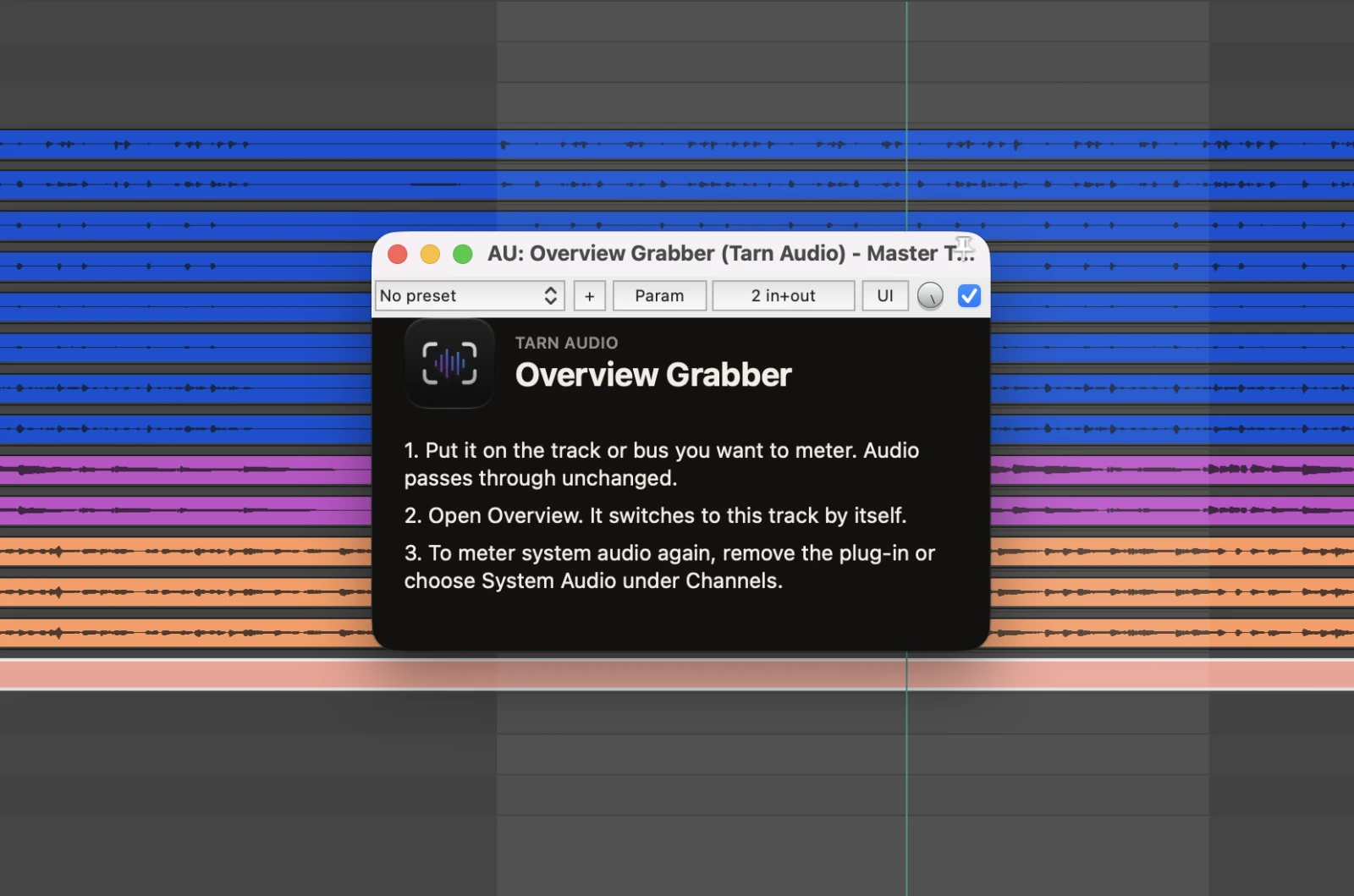
Use it to meter one track or bus before it reaches the mix. It passes the audio through unchanged. To meter everything your DAW plays to an interface that isn’t your Mac’s sound output, you don’t need it. Choose the interface under Channels › Meter Audio Playing To instead (see Meter a multichannel device).
Install Overview Grabber
- Open Overview Settings › Overview Grabber.
- Click Install.
- Quit and reopen your DAW, or rescan its plug-ins, so it finds the plug-in.
It appears in your DAW as Tarn Audio: Overview Grabber, an Audio Unit effect. It’s installed for you alone. If you installed it from Overview’s disk image for all users instead, update it by dragging the one in a newer disk image to the same Components folder; Settings shows Show in Finder to take you there.
Meter a track
Add Overview Grabber to the track or bus you want to meter. Overview switches to it and starts a new measurement (while Monitor Surround is on, choose it from Channels yourself), and the Channels menu shows the track’s name and layout, such as Atmos Bed · 7.1.4.
- A 6, 8 or 12-channel track is metered as 5.1, 7.1 or 7.1.4, with the Surround Field.
- Other tracks are metered as stereo from their first two channels; a mono track as both sides.
Switch back to system audio
Remove the plug-in, or choose System Audio from Channels. With several Overview Grabbers in a session, choose the one to meter from Channels. Adding a new one switches to it, except while Monitor Surround is on.
To take the plug-in off your Mac, click Remove… in Settings › Overview Grabber. Projects that use it will open without it.