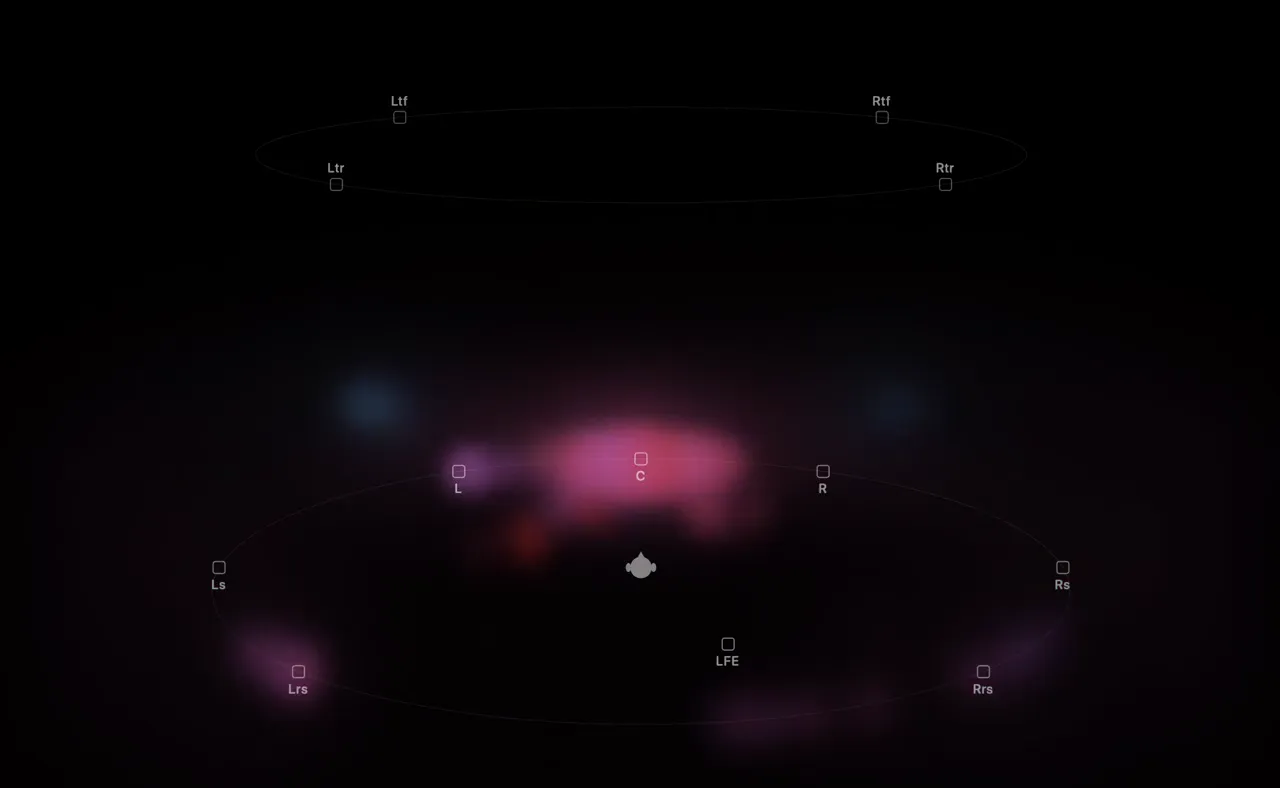
Audio meter for Mac, stereo and Atmos
Check your mix without the hassle
Overview meters whatever your Mac plays, from your DAW to Spotify or a browser tab, with no routing and no plugin needed
- Hear Atmos as Apple Music listeners will
- Compare with references at matched loudness
- Keep your meters in view but not in the way
Not on your Mac right now? Start it here and we'll email you the download link.
Paid once, no subscription · Mac only Launch price until 31 December. Want it on Windows?
Without Overview, every check pulls you out of the mix
-
Comparing with a release
You stop your DAW, start the track in Apple Music, then nudge volumes by ear so the louder one doesn't win. By the time it plays, you've lost the sound of your own mix.
-
Checking Atmos
Your DAW plays Dolby's binaural render, but Apple Music listeners hear Apple's own. Hearing your mix as they will means exporting it and playing it somewhere else, with nothing to show which speakers carry what.
-
Watching the meters
A meter plugin on your master bus only hears your DAW, never the reference in Spotify. A separate meter app is one more window to click back to, over the session you're working in.
So you check less often than you should, and find out after release.
What Overview does instead
See and hear how your mix stacks up
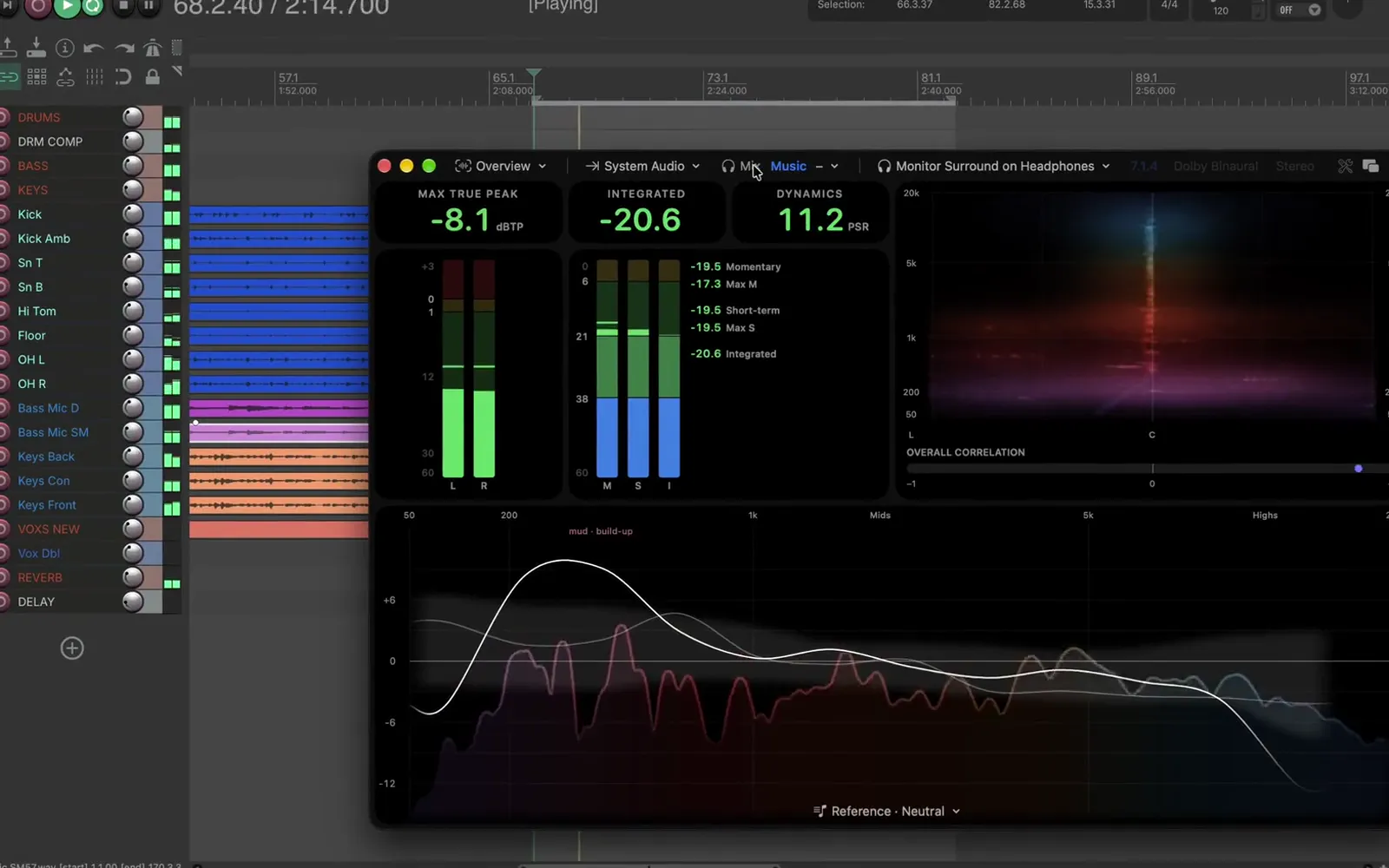
Choose the app your reference plays in, such as Apple Music, Spotify or a browser tab. One click switches between it and your DAW, matched in loudness, and Balance shows how each compares with well-made masters in your genre.

Hear Atmos as listeners will, and learn from the best
Send your mix from your DAW or play a release in Apple Music, and hear it on your headphones through Apple’s own Spatial Audio, or switch to Dolby Binaural or Stereo at matched loudness. Solo a speaker, or just the sound that’s placed or just what’s spread, to hear how the mixes you admire are built.

Meters in view, never in the way
Turn on the floating meter, and closing the window keeps Balance or the key figures in a corner above every app. Or stretch Overview into a strip along your screen, and press ⌃⇧O for single-key commands without leaving your DAW.

Not on your Mac right now? Start it here and we'll email you the download link.
Launch price until 31 December. Paid once, no subscription.
Also in Overview

Your mix vs commercial tracks
See overall tonal balance. Flags name where sounds crowd each other out, from boom and mud to honk, and mark any part which may be too compressed or lively vs the reference group.

See where each sound sits in stereo
Focused sounds are bright points, wide ones soft washes. Highlight Mono Loss colours orange whatever cancels in mono.

All the standard meters
True peak, momentary, short-term and integrated loudness and PSR, for stereo and every speaker of a 7.1.4 mix. For Atmos delivery, read loudness from the renderer’s 5.1 re-render.

Spectrum and spectrogram
The Spectrum for the shape of the mix, the Spectrogram for how it changes over time, down to single syllables.
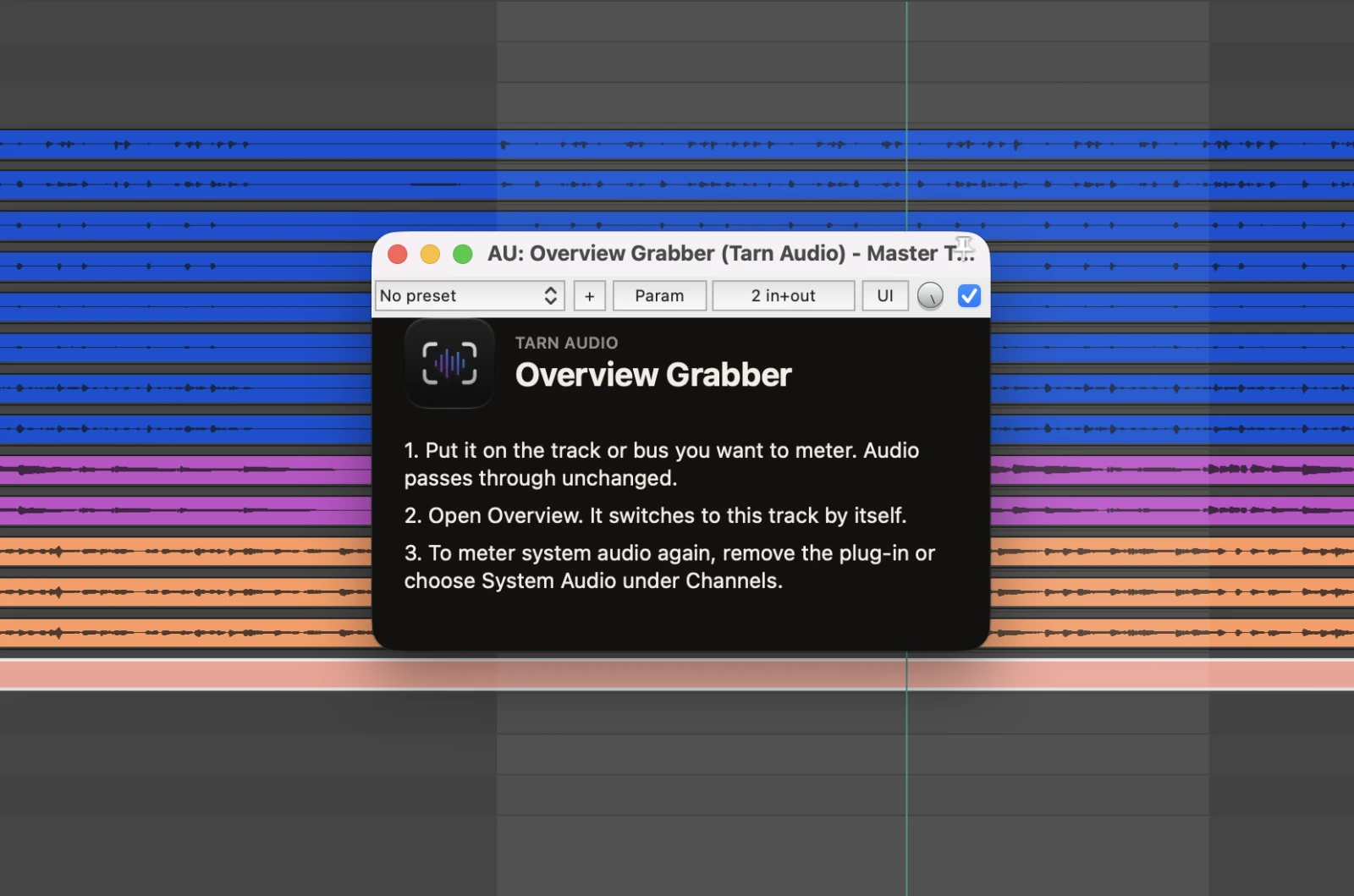
Meter a single track in your DAW
Put Overview Grabber on a track or bus and Overview meters just that, even when your DAW plays to another interface.

Meter your interface's outputs
Meter the device your DAW plays to, even when it isn’t your Mac’s sound output: any stereo pair, or a 5.1, 7.1 or 7.1.4 block.
Before you try it
Why not use a free meter?
Does it work with my DAW?
Does it add latency?
Do I need a driver or a plugin?
Does Spotify's or Apple Music's normalisation change the readings?
Why does macOS ask for Screen & System Audio Recording?
What happens when the trial ends?
Try it on your next mix
Compare it with the music you love, hear it in Atmos as Apple Music listeners will, and keep the meters in view while you work. If you buy it and change your mind, you have 14 days to ask for a refund.
Not on your Mac right now? Start it here and we'll email you the download link.
Launch price until 31 December. Paid once, no subscription. Made by Tim, formerly of Sonnox and Focusrite.
Details
| Displays | Overview, Levels, Spectrum, Spectrogram, Stereo or Surround Field, and Balance |
|---|---|
| Surround | Up to 7.1.4, from any app or an audio interface. Atmos from Apple Music needs the Overview Surround device; stereo needs no driver. |
| Requires | macOS 14.2 or later |
| Listens to | Everything your Mac plays to its sound output, through macOS’s own audio taps, in the background. Your DAW plays as usual, with nothing routed through Overview. |
| Licence | One licence for up to 3 of your Macs. It needs the internet only to activate or deactivate a Mac, so going offline never locks you out. Your licence key arrives by email. |