Keep a meter over your DAW
The floating meter keeps one card in a corner of the screen, above every app, while the Overview window is closed.
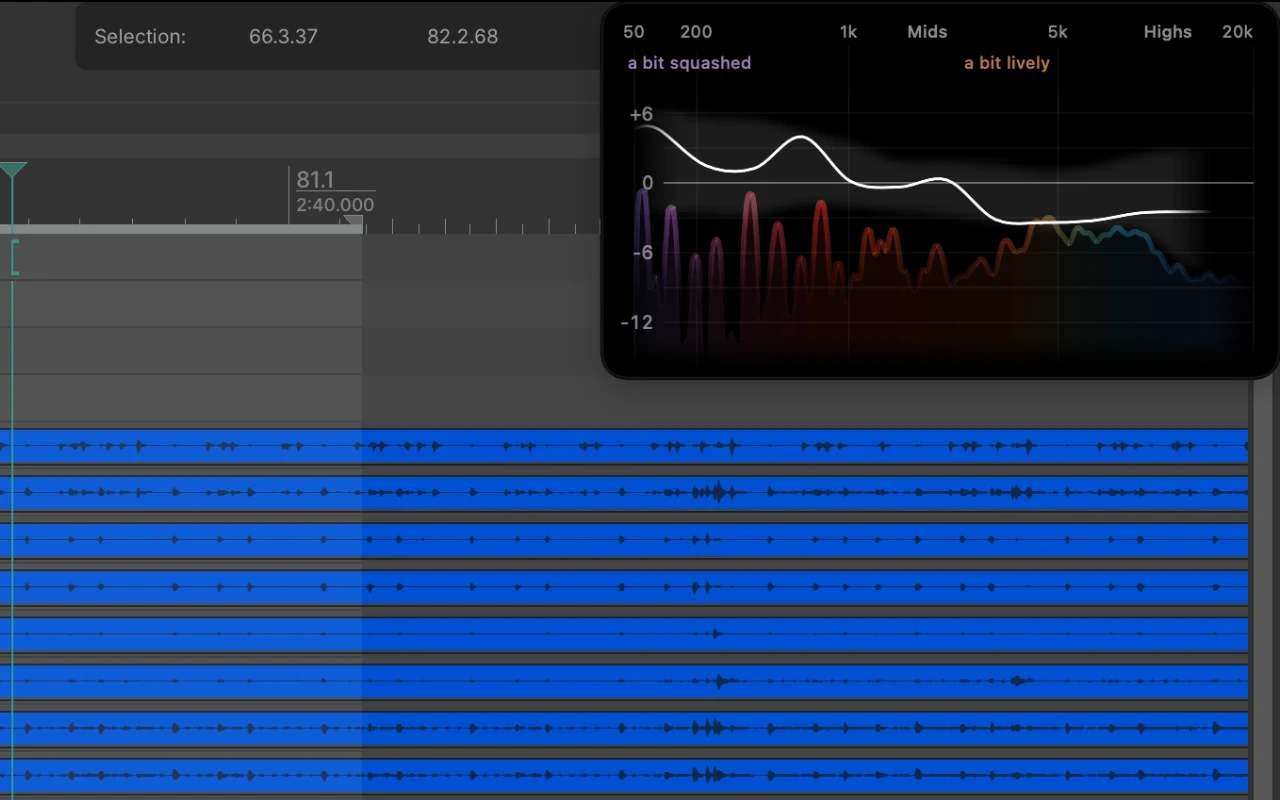
Turn it on
Click the picture-in-picture button in the Overview window’s title bar, turn on Floating meter in Overview Settings › Appearance, or choose Show Floating Meter from the Overview icon in the menu bar.
Then close the Overview window (Command+W , or Esc ). One card stays in a corner of the screen, on every Space, and the app you were working in comes back to the front. Overview carries on measuring, so integrated loudness doesn’t start again as it would with no floating meter.
Clicking the floating meter never takes you out of the app you’re working in. Double-click it, or right-click it and choose Open Overview, to open the Overview window on the display the pointer is on.
Choose the card
Right-click the floating meter and choose Levels, True Peak, Loudness, Spectrum, Spectrogram, Stereo Field, Balance or Key Figures (Max True Peak, Integrated and Dynamics). On a surround selection, Stereo Field reads Surround Field. You can also choose it in Settings › Appearance › Floating meter card, or press 1 to 6 in the command panel.
While the window is closed, Overview analyses only what the card shows, so a floating meter left up all day costs little.
With the pointer over the card, its settings and ↺ buttons appear as they do in the window. Clicking a reading doesn’t reset it here, as a double-click opens the window; use the ↺ button.
Move and resize it
- Drag it, and let go near another corner. It snaps to the nearest one, and remembers the corner and display.
- Drag its edges or corners to resize it. Each card keeps its own size.
- Scroll over it to make it fainter or more solid. It’s fully solid while the pointer is over it.
Tuck it into the notch
On a Mac with a notch, drag the floating meter to the notch, or right-click it and choose Tuck into Notch. It hides in the notch until you rest the pointer there, then drops down beneath it, and tucks away again half a second after the pointer leaves. Drag it down to a corner to take it out again.
While it’s tucked away, Control+Shift+O opens the Overview window rather than the command panel.
Hide it
Right-click the floating meter and choose Hide Floating Meter, or turn off Floating meter in Settings. With neither the window nor the floating meter on screen, measurements end as they do when you close the window, unless Monitor Surround is on or you’re comparing with an app.